BilateralFilter
OpenLvVision_OpenCv.lvlib:BilateralFilter.vim
Applies the bilateral filter to an image.
The function applies bilateral filtering to the input image, as described in http://www.dai.ed.ac.uk/CVonline/LOCAL_COPIES/MANDUCHI1/Bilateral_Filtering.html.
bilateralFilter can reduce unwanted noise very well while keeping edges fairly sharp. However, it is very slow compared to most filters.
- Sigma values: For simplicity, you can set the 2 sigma values to be the same. If they are small ($< 10$), the filter will not have much effect, whereas if they are large ($> 150$), they will have a very strong effect, making the image look "cartoonish".
- Filter size: Large filters ($d > 5$) are very slow, so it is recommended to use $d=5$ for real-time applications, and perhaps $d=9$ for offline applications that need heavy noise filtering.
For detailed information, please refer to the OpenCV documentation
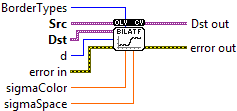
| error in error in can accept error information wired from VIs previously called. Use this information to decide if any functionality should be bypassed in the event of errors from other VIs. Right-click the error in control on the front panel and select Explain Error or Explain Warning from the shortcut menu for more information about the error. |

| status status is TRUE (X) if an error occurred or FALSE (checkmark) to indicate a warning or that no error occurred. Right-click the error in control on the front panel and select Explain Error or Explain Warning from the shortcut menu for more information about the error. |

| code |

| source source describes the origin of the error or warning. Right-click the error in control on the front panel and select Explain Error or Explain Warning from the shortcut menu for more information about the error. |

| Src Source 8-bit or floating-point, 1-channel or 3-channel image. |

| Dst Destination image of the same size and type as src . |
| d Diameter of each pixel neighborhood that is used during filtering. If it is non-positive, it is computed from sigmaSpace. |
| sigmaColor Filter sigma in the color space. A larger value of the parameter means that farther colors within the pixel neighborhood (see sigmaSpace) will be mixed together, resulting in larger areas of semi-equal color. |

| sigmaSpace Filter sigma in the coordinate space. A larger value of the parameter means that farther pixels will influence each other as long as their colors are close enough (see sigmaColor ). When d>0, it specifies the neighborhood size regardless of sigmaSpace. Otherwise, d is proportional to sigmaSpace. |
| BorderTypes Various border types, image boundaries are denoted with `|` BORDER_CONSTANT = 0, !< `iiiiii|abcdefgh|iiiiiii` with some specified `i` BORDER_REPLICATE = 1, `aaaaaa|abcdefgh|hhhhhhh` BORDER_REFLECT = 2, `fedcba|abcdefgh|hgfedcb` BORDER_WRAP = 3, `cdefgh|abcdefgh|abcdefg` BORDER_REFLECT_101 = 4, `gfedcb|abcdefgh|gfedcba` BORDER_TRANSPARENT = 5, `uvwxyz|abcdefgh|ijklmno` - Treats outliers as transparent. BORDER_ISOLATED = 16 Interpolation restricted within the ROI boundaries. |
| error out error in can accept error information wired from VIs previously called. Use this information to decide if any functionality should be bypassed in the event of errors from other VIs. Right-click the error in control on the front panel and select Explain Error or Explain Warning from the shortcut menu for more information about the error. |

| status status is TRUE (X) if an error occurred or FALSE (checkmark) to indicate a warning or that no error occurred. Right-click the error in control on the front panel and select Explain Error or Explain Warning from the shortcut menu for more information about the error. |

| code |

| source source describes the origin of the error or warning. Right-click the error in control on the front panel and select Explain Error or Explain Warning from the shortcut menu for more information about the error. |

| Dst out Destination image of the same size and type as src . |
