ReadNet_Automatic
OpenLvVision_OpenCv.lvlib:ReadNet_Automatic.vi
Read deep learning network represented in one of the supported formats.
For detailed information, please refer to the OpenCV documentation
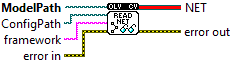
| error in error in can accept error information wired from VIs previously called. Use this information to decide if any functionality should be bypassed in the event of errors from other VIs. Right-click the error in control on the front panel and select Explain Error or Explain Warning from the shortcut menu for more information about the error. |

| status status is TRUE (X) if an error occurred or FALSE (checkmark) to indicate a warning or that no error occurred. Right-click the error in control on the front panel and select Explain Error or Explain Warning from the shortcut menu for more information about the error. |

| code |

| source source describes the origin of the error or warning. Right-click the error in control on the front panel and select Explain Error or Explain Warning from the shortcut menu for more information about the error. |

| framework Explicit framework name tag to determine a format. |
| ModelPath Binary file contains trained weights. The following file extensions are expected for models from different frameworks: *.caffemodel (Caffe) *.pb (TensorFlow) *.t7 | *.net (Torch) *.weights (Darknet) *.bin | *.onnx (OpenVINO) *.onnx (ONNX) |

| ConfigPath Text file contains network configuration. It could be a file with the following extensions: *.prototxt (Caffe) *.pbtxt (TensorFlow) *.cfg (Darknet) *.xml (OpenVINO) |
| NET |

| error out error in can accept error information wired from VIs previously called. Use this information to decide if any functionality should be bypassed in the event of errors from other VIs. Right-click the error in control on the front panel and select Explain Error or Explain Warning from the shortcut menu for more information about the error. |

| status status is TRUE (X) if an error occurred or FALSE (checkmark) to indicate a warning or that no error occurred. Right-click the error in control on the front panel and select Explain Error or Explain Warning from the shortcut menu for more information about the error. |

| code |

| source source describes the origin of the error or warning. Right-click the error in control on the front panel and select Explain Error or Explain Warning from the shortcut menu for more information about the error. |
